
Saved to Work
How CamNest works
You pick the folder before you take the photo. Make a folder in CamNest, tap it or its home screen shortcut, and the camera opens. Every photo and video you take is saved straight into that folder, so there is nothing to sort afterwards.
Updated

Five steps, set up once
-
1 Install CamNest
Get CamNest free from Google Play. There is no account to create and nothing to sign in to.
-
2 Make a folder
Give it a name and a colour: Kids, Work, Receipts, a job address. Each folder is its own camera.
-
3 Pin it to your home screen
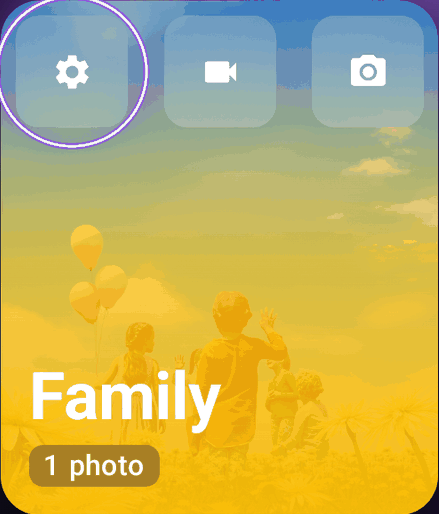
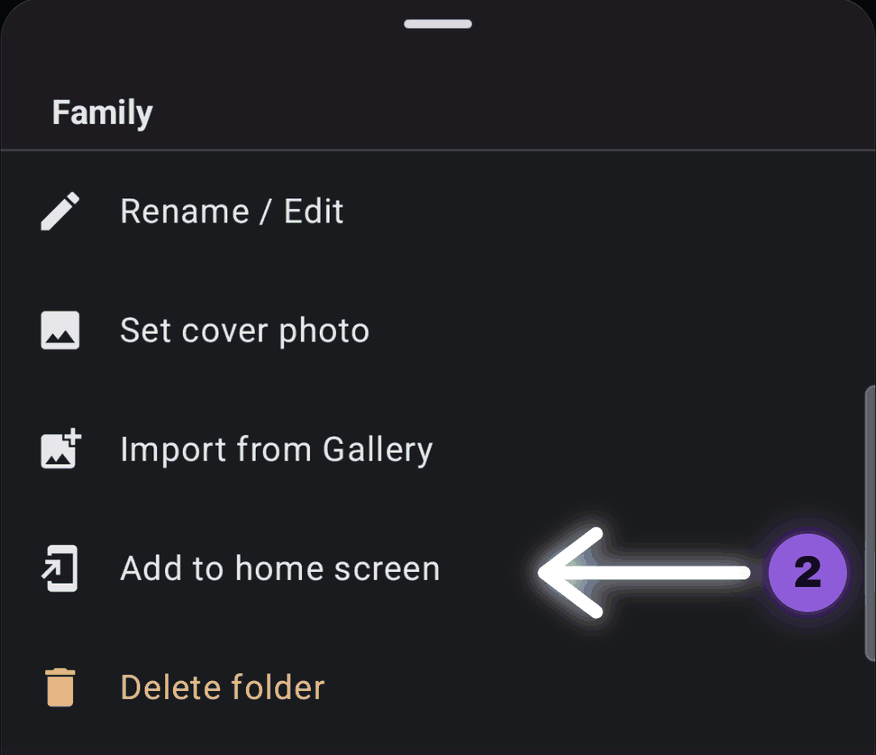
Tap the gear on the folder, then Add to home screen. The folder now has its own shortcut next to your other apps.
-
4 Tap and shoot
Tap the shortcut and the camera opens for that folder. Take photos or video, with flash, zoom and resolution settings.
-
5 It is already filed
Every photo and video you took is in that folder. Open it to swipe through, or share to any app. There is nothing left to sort.


Three ways to open a folder camera
Once a folder exists, you can reach its camera in one tap from outside the app:
- Home screen shortcut. One shortcut per folder, made from the folder's gear menu.
- Long-press the CamNest icon. Your folders appear in the app icon's menu; pick one to jump straight to it.
- Widget. One resizable home screen widget that holds all your folder cameras.


Where do the photos go?
Photos and videos are saved on your phone, inside the folder you picked. They stay visible in your usual gallery app, such as Google Photos, as ordinary photos. CamNest only decides where they land; it never uploads them anywhere.
More on this in the privacy policy.
Photos you already took
CamNest can also tidy up the past. In any folder you can:
- import existing photos from your gallery,
- move photos between folders in batches,
- sort and batch rename photos,
- set a cover photo for the folder.
What it costs
CamNest is free with 2 folders. Pro (about $1.99) gives you more folders and Unlimited (about $3.99) gives you as many as you need. Both are one-time in-app purchases, not subscriptions. Google Play shows the exact price in your currency before you buy.
Pick the folder first.
The camera does the filing.

Free with 2 folders. No account.